Edit multiple images at once
Apply the same edit across your selection to save time while keeping creative control
3 easy steps to apply an edit across images

Search stock
Search for images like you normally do.
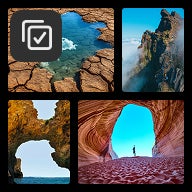
Select multiple images
Hover over images across searches and select checkboxes.
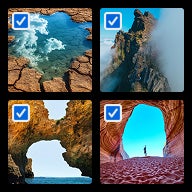
Choose and apply your edit
Select edit, its settings, and apply to selected images.
Remove backgrounds at scale
Apply background removal to multiple images at once — perfect for creating a cohesive set of isolated subjects or transparent PNGs for your project.
Expand to consistent dimensions
Resize multiple images to the same aspect ratio in one step to create uniform assets for social media, presentations, or web layouts.
Creative consistency at scale
Apply the same color palette or mood across multiple images to ensure visual alignment for campaigns and other projects requiring uniform aesthetics.
Image edits
Motion edits
Generate

Your creative vision, without the compromise
Pairing a massive content library with the intuitive tools in AI Studio provides a new level of creative control over stock content — and with the confidence to use your edited content commercially, just as you'd expect from Adobe Stock. The result? Work that's unmistakably yours.